
Personalization & themes
Open Settings, Personalize to change how the app looks. None of these settings touch what other people see, they are purely your own.
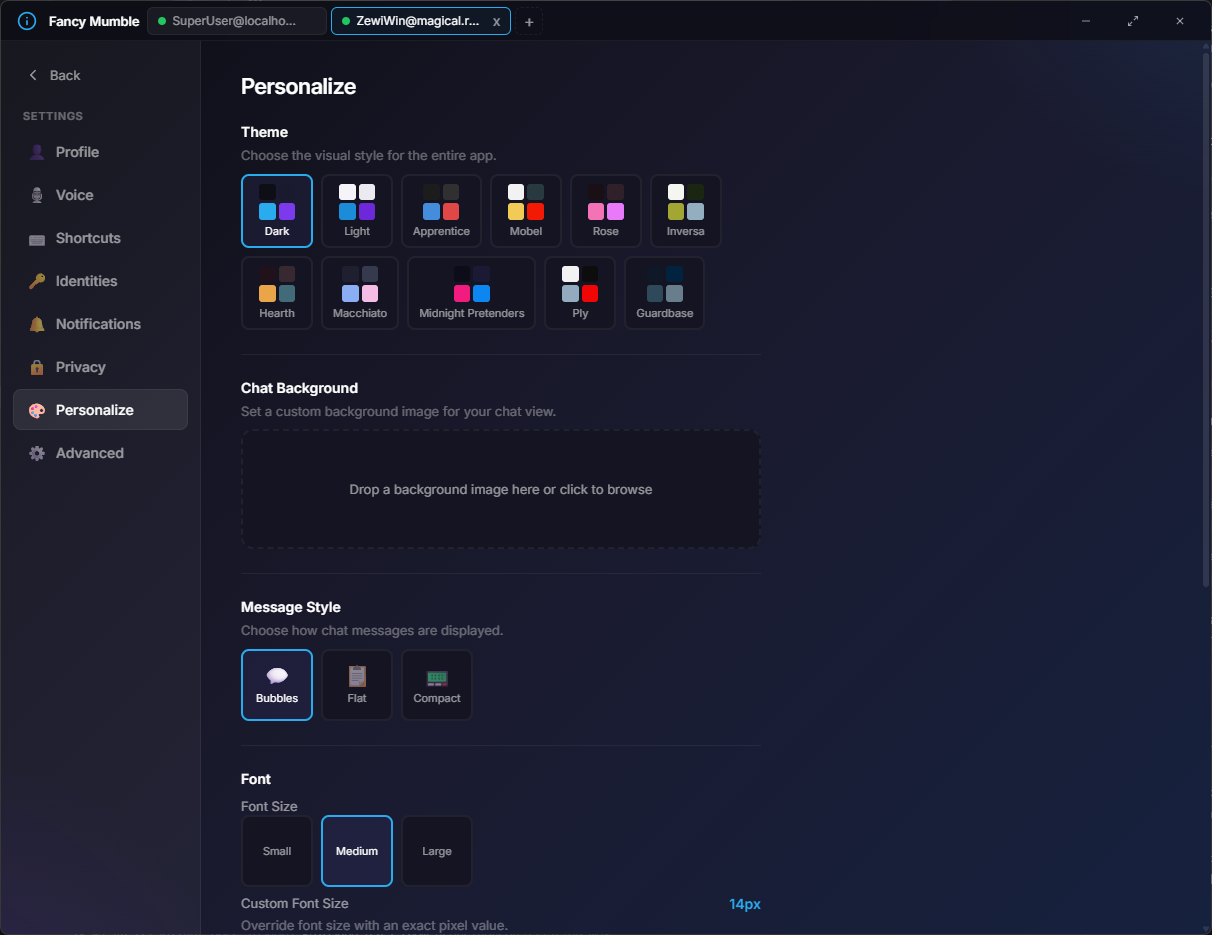
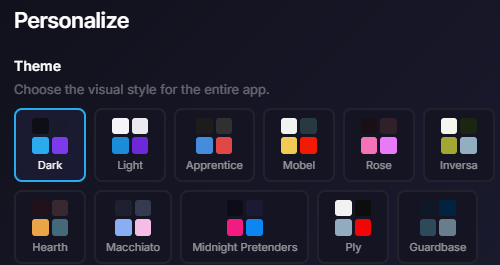
Fancy Mumble ships with eleven themes. Click a swatch card to apply it instantly.
- Dark (default)
- Light
- Apprentice
- Mobel
- Rose
- Inversa
- Hearth
- Macchiato
- Midnight Pretenders
- Ply
- Guardbase
Channel viewer style
Section titled “Channel viewer style”The left sidebar comes in three looks:
Closest to traditional Mumble. Compact tree with bracket-style branches. Best for big servers with deep channel trees.
Compact one-line-per-channel view. Looks like a chat-app sidebar.
Large channel cards.
Bubble style (chat messages)
Section titled “Bubble style (chat messages)”Three looks for individual chat messages:
- Bubbles (default): rounded chat bubbles, like a messenger app.
- Flat: clean rows, like a classic forum.
- Compact: dense, several lines fit per visible row.
Chat background
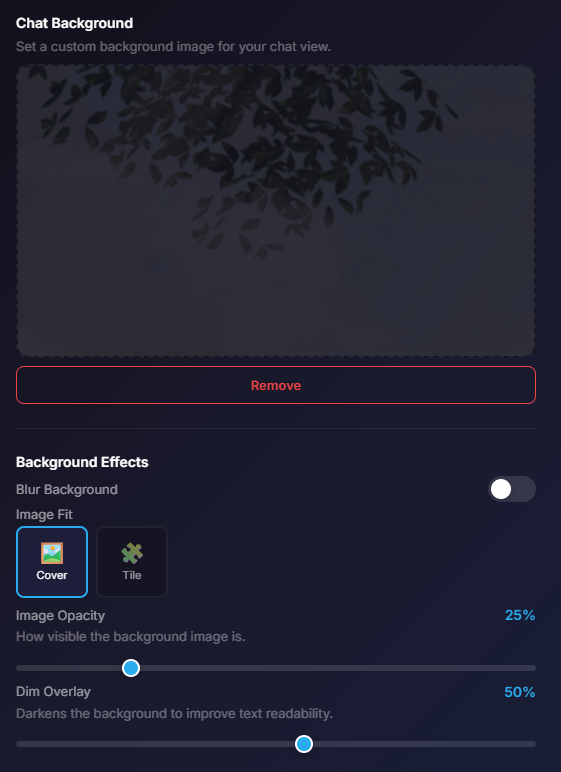
Section titled “Chat background”Drop an image or pick a color to set the background of the chat column.
- Fit: pick Cover (fills, may crop) or Tile (repeats).
- Dim: darken the image so text stays readable. 0 to 100%.
- Blur: blur the image. The blur is calculated in the backend, so very large values may take a moment to re-process.
Pick from a curated list of fonts. The default is your system font.
Font size
Section titled “Font size”Three sizes: small, medium (default), large.
Compact mode
Section titled “Compact mode”A toggle that hides avatars and tightens the chat spacing for a denser layout.
Resetting
Section titled “Resetting”The Danger Zone at the bottom of Settings, Advanced has a Reset button that restores everything to defaults.
Next step
Section titled “Next step”Continue with Keyboard shortcuts.