
Welcome message editor
Open Settings, choose the connected server’s administration section, then Welcome message. The node editor controls which greeting an arriving member receives and what it contains.
This editor reads and saves through Starling’s operator API using a short-lived credential granted to your existing session. The server must expose that API to the client and grant server-config:read and server-config:write. If loading fails, use the displayed error to check permissions and API reachability; saving is blocked until the existing graph has loaded.
Start with a template
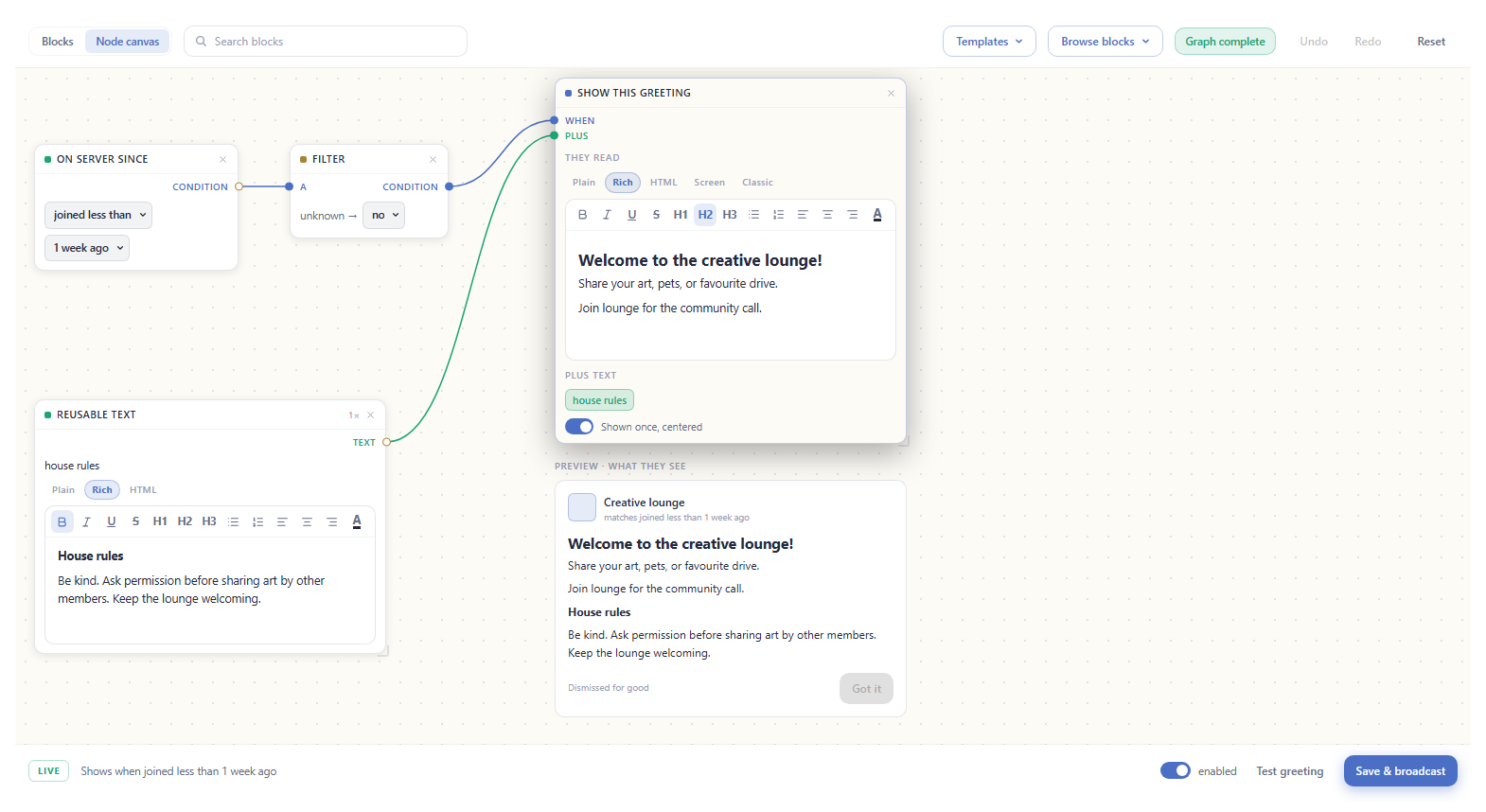
Section titled “Start with a template”- Open Templates and choose a greeting close to your intended rule. Warm welcome, with the rules includes a newcomer condition and a reusable rules snippet.
- Edit the message in its greeting node. Use Plain for unformatted text, Rich for the visual editor, or HTML for source markup.
- Check the condition, its connecting wire, and the preview beneath the greeting.
- Use Test greeting to inspect the result, then Save & broadcast to apply it to the server. Editing the canvas alone does not save your changes.
Read the wires
Section titled “Read the wires”| Block or input | Purpose |
|---|---|
| Condition | Tests a visitor fact, such as account status, time on the server, group, country, OS, or client version. |
| AND, OR, XOR gate | Combines condition outputs. AND requires both; OR accepts either; XOR accepts exactly one. |
| Filter | Decides how an unknown condition is treated. unknown → yes admits it; unknown → no does not. |
| Greeting WHEN | The condition controlling whether this greeting is shown. |
| Reusable text → PLUS | Appends a shared snippet, such as house rules, to a greeting. |
For a greeting shown to everyone, use the Everyone filter connected to WHEN. For a newcomer-only greeting, connect the time-on-server condition through a filter and check the resulting sentence in the status bar. An unavailable visitor fact is not automatically false: the filter’s unknown choice matters.
Edit the layout and message
Section titled “Edit the layout and message”Node canvas shows the blocks and wires; Blocks gives a readable summary of the same graph. Browse blocks adds another condition, gate, greeting, or reusable text block. Use Undo and Redo after wiring or moving nodes.
A greeting’s Screen view builds a welcome screen from sections, while Classic provides its legacy-compatible layout. Inspect the preview after changing views. Rich formatting requires the server’s allow_html setting; plain text remains useful for clients that cannot render the formatted version.
The server limits each message body to 4096 characters. Keep rules short and link to longer community information. Unsupported HTML may need to remain in the HTML source view to avoid losing formatting that the rich editor cannot represent.
Validate before saving
Section titled “Validate before saving”The status reports whether the graph is complete. Finish required connections and inspect any conflicting greetings before saving. The footer describes who will receive the selected greeting; compare that sentence with your intended audience.
Shown once, centered makes a greeting dismissible for good rather than showing it on every connection. Check both a fresh visitor and a returning member when testing. A user’s own welcome-message notification preference can also affect whether they see the popup.
Use the enabled switch to control whether the graph is active, then save the change. Keep onboarding questions and role assignment in the separate Onboarding workflow; this editor supplies the greeting.
When a greeting does not appear
Section titled “When a greeting does not appear”- Confirm the graph is enabled and Save & broadcast succeeded.
- Inspect the condition and unknown handling; test with the intended visitor type.
- Check whether the member already dismissed a shown-once greeting or disabled welcome popups.
- If only formatting is missing, check
allow_htmland the receiving client’s supported layout. - For load/save failures, record the exact error and check the operator API and granted scopes.