
Public
Anyone with the link can download. Use for files you would be okay posting publicly.
Fancy Mumble lets you share files and images right in chat. You pick who can download, and for how long.
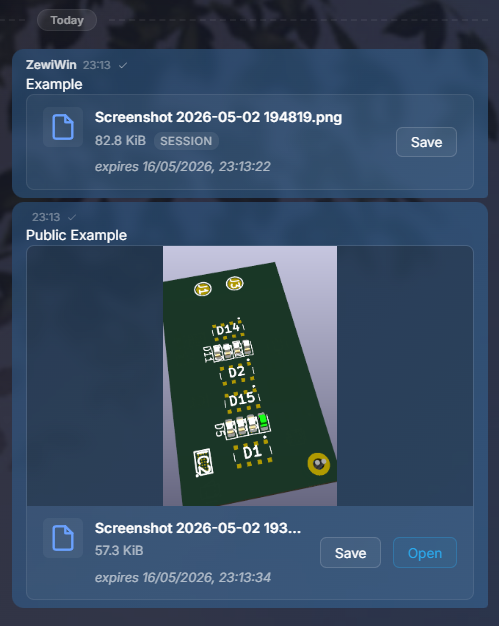
In the chat composer, click the paperclip button. You can also drag-and-drop a file onto the chat window, or paste an image from the clipboard.
The Share file dialog opens. Pick an access mode (see below), add an optional message, and click Upload.
The file is uploaded to the server. A progress bar shows below the chat. Once finished, a small attachment card appears as a chat message.
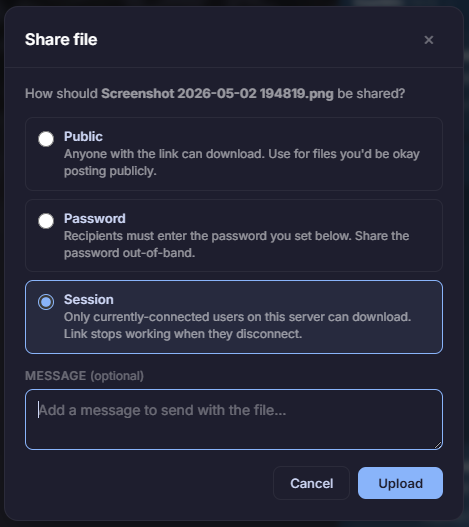
You get three modes when sharing. Pick the one that fits.
Public
Anyone with the link can download. Use for files you would be okay posting publicly.
Password
Recipients must enter the password you set. Share the password out-of-band (in chat, in a private message, in a different channel). Good when you want a known group to access it.
Session
Only users currently connected to this server can download. The link stops working when they disconnect. Default option. Great for ephemeral sharing.
Any file works. Images and short clips get a preview card with a thumbnail, click to view full size. Other files show as a card with filename, size, and a download button.
| File type | Preview |
|---|---|
| Images (PNG, JPG, GIF, WebP, SVG, AVIF) | Inline thumbnail and lightbox |
| Audio (MP3, WAV, Opus) | Inline player |
| Video (MP4, WebM) | Inline player |
| PDFs | Filename card |
| Everything else | Filename card with size |
Maximum file size is set by the server (see File server). The default is about 50 MB per file.
Screenshot placeholder: downloads panel with three recent items.
Ctrl+V (or Cmd+V) in the chat box
to paste a screenshot or copied image. The Share dialog opens
pre-filled.Your server admin can adjust each of these on the server side, see File server for details.
If you connect to a server that does not have the Fancy Mumble file server enabled:
imagemessagelength allows it (usually a
couple of MB).Continue with Chat features for everything else you can do with text.