
Audit log
Open Settings, select your connected server’s administration section, then Audit log. Starling must have its audit service enabled. Reading and configuring the audit log currently require Write permission on the root channel; being able to moderate one child channel does not grant access to the whole server’s log.
Dashboard
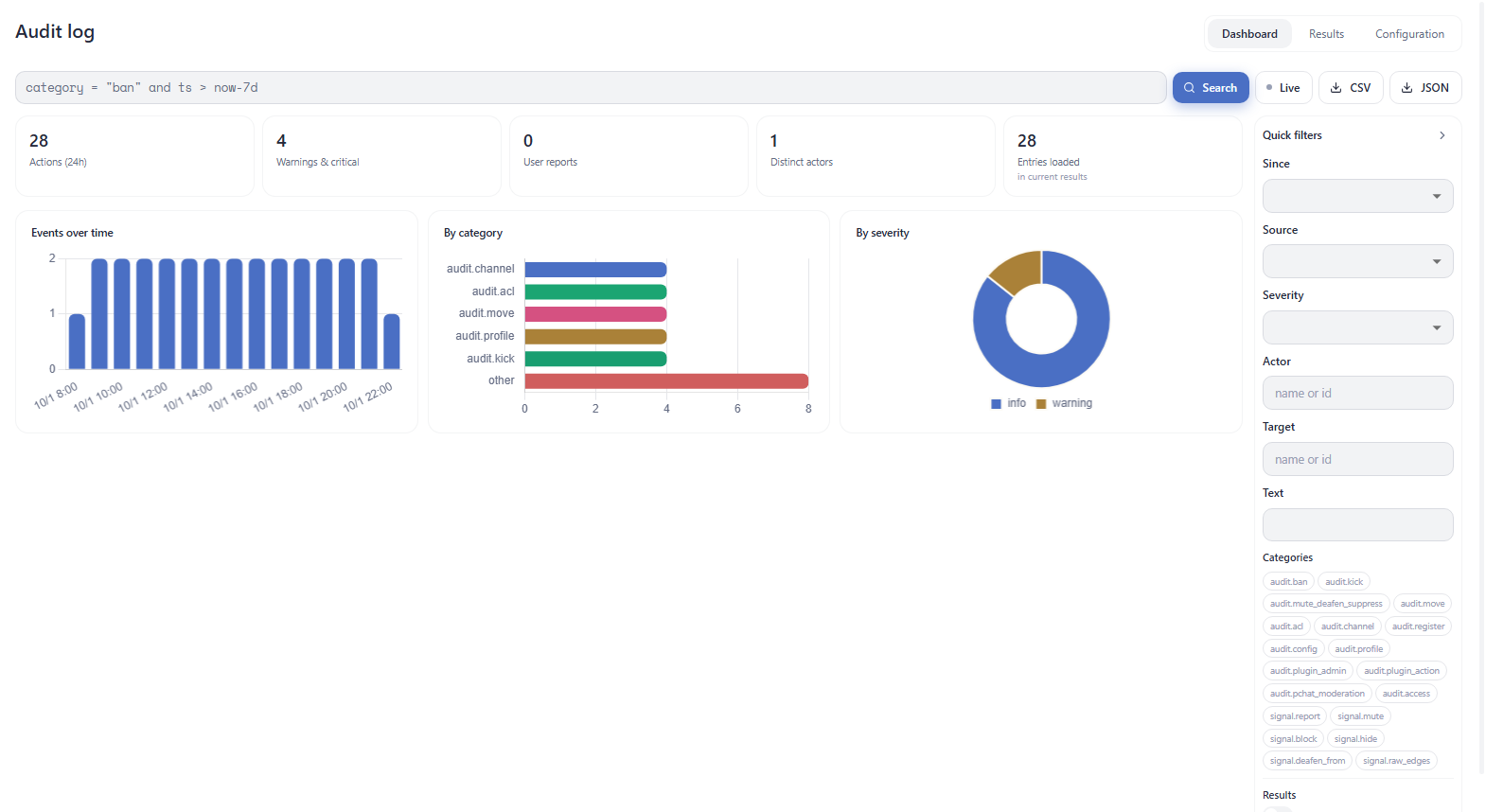
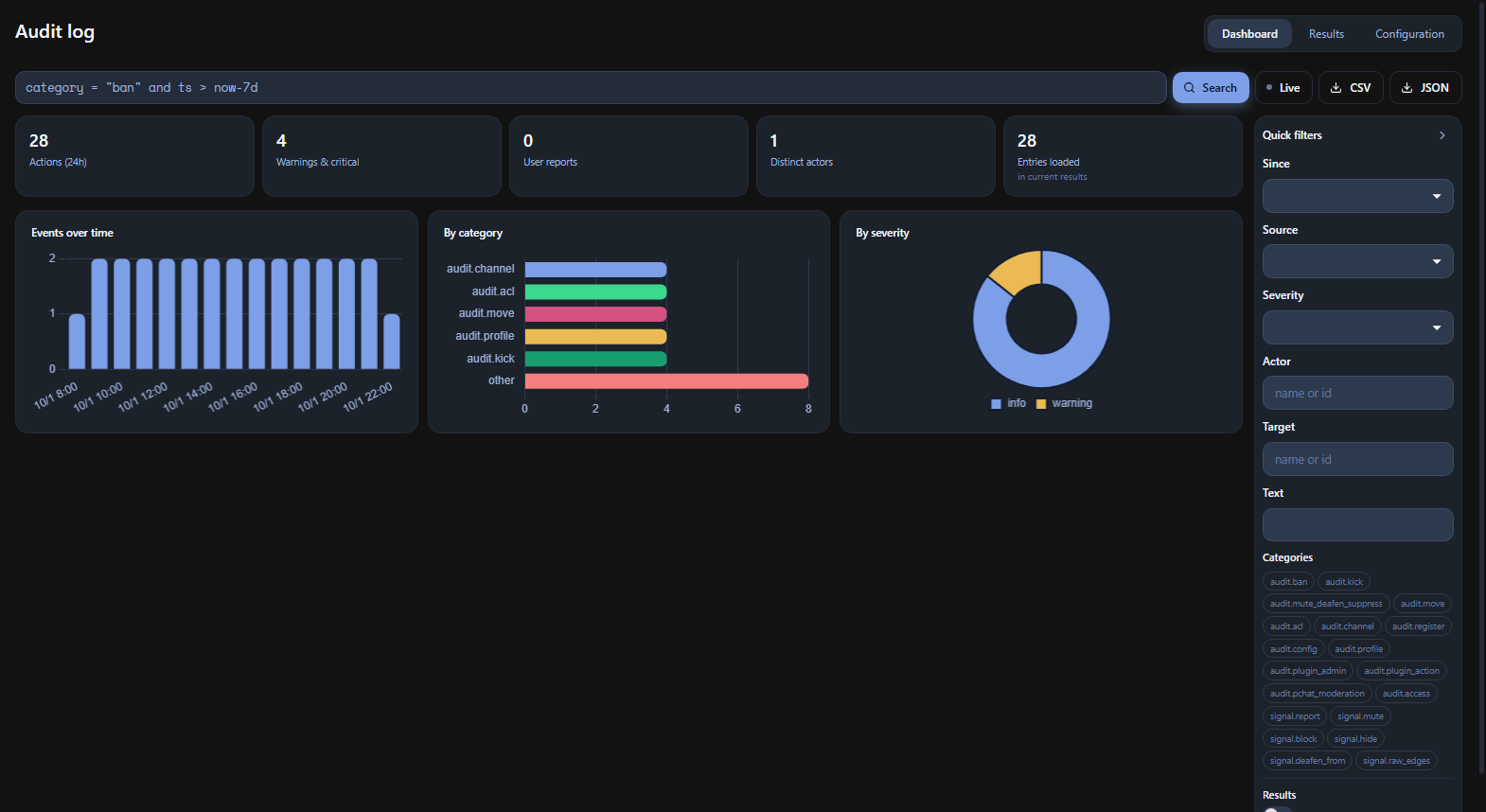
Section titled “Dashboard”The dashboard summarizes the loaded results: recent actions, warnings, reports, actors, and charts by time, category, and severity. These are not totals for every entry ever stored. Run a search to change the result set before comparing incidents.
Find an action
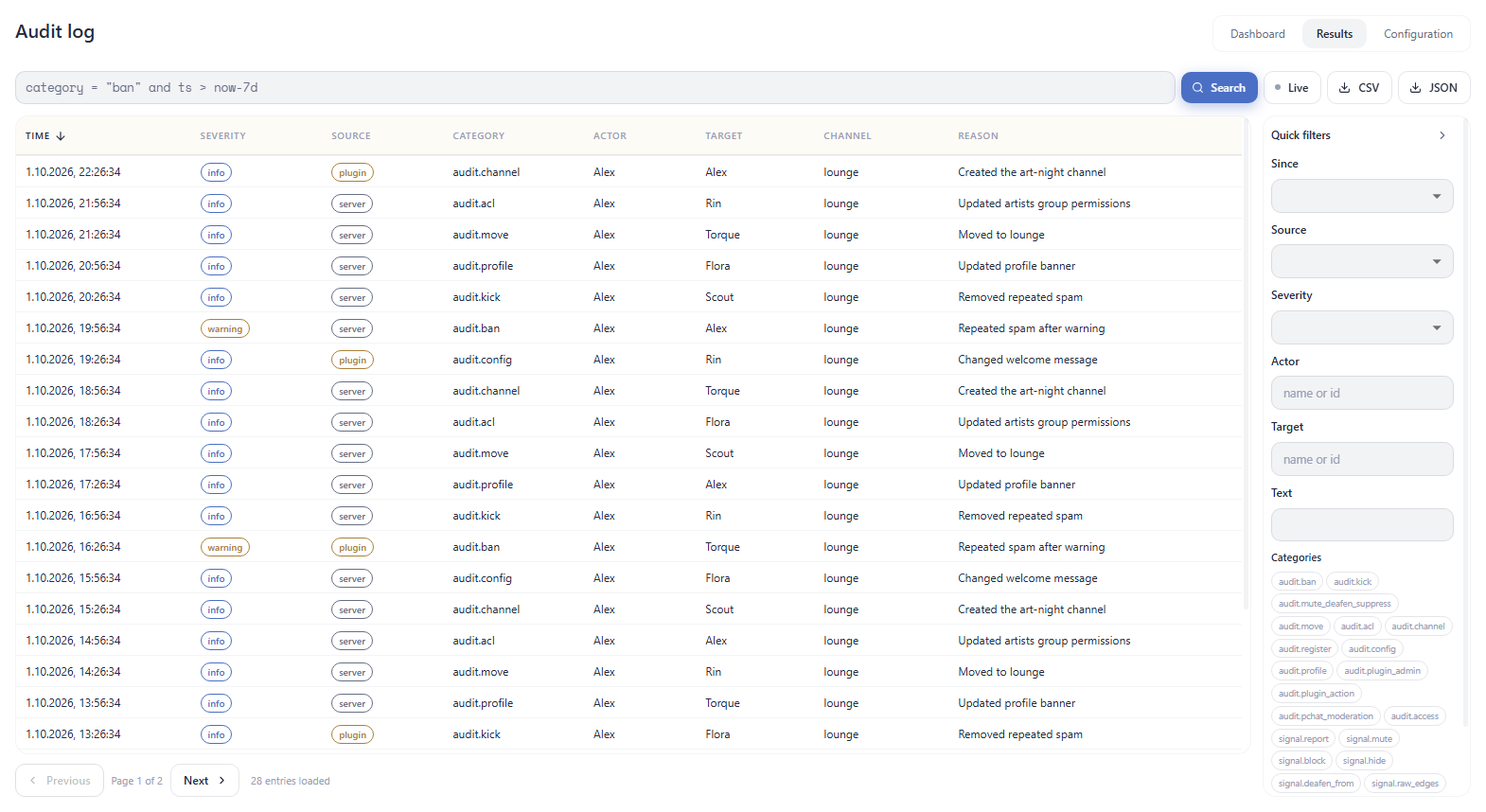
Section titled “Find an action”- Select Results and choose a time range under Since.
- Narrow Source, Severity, Actor, Target, or Categories. For example, select
audit.banto investigate a ban, oraudit.aclfor permission changes. - Press Search after editing the query text. The quick filters and simple query describe the same search.
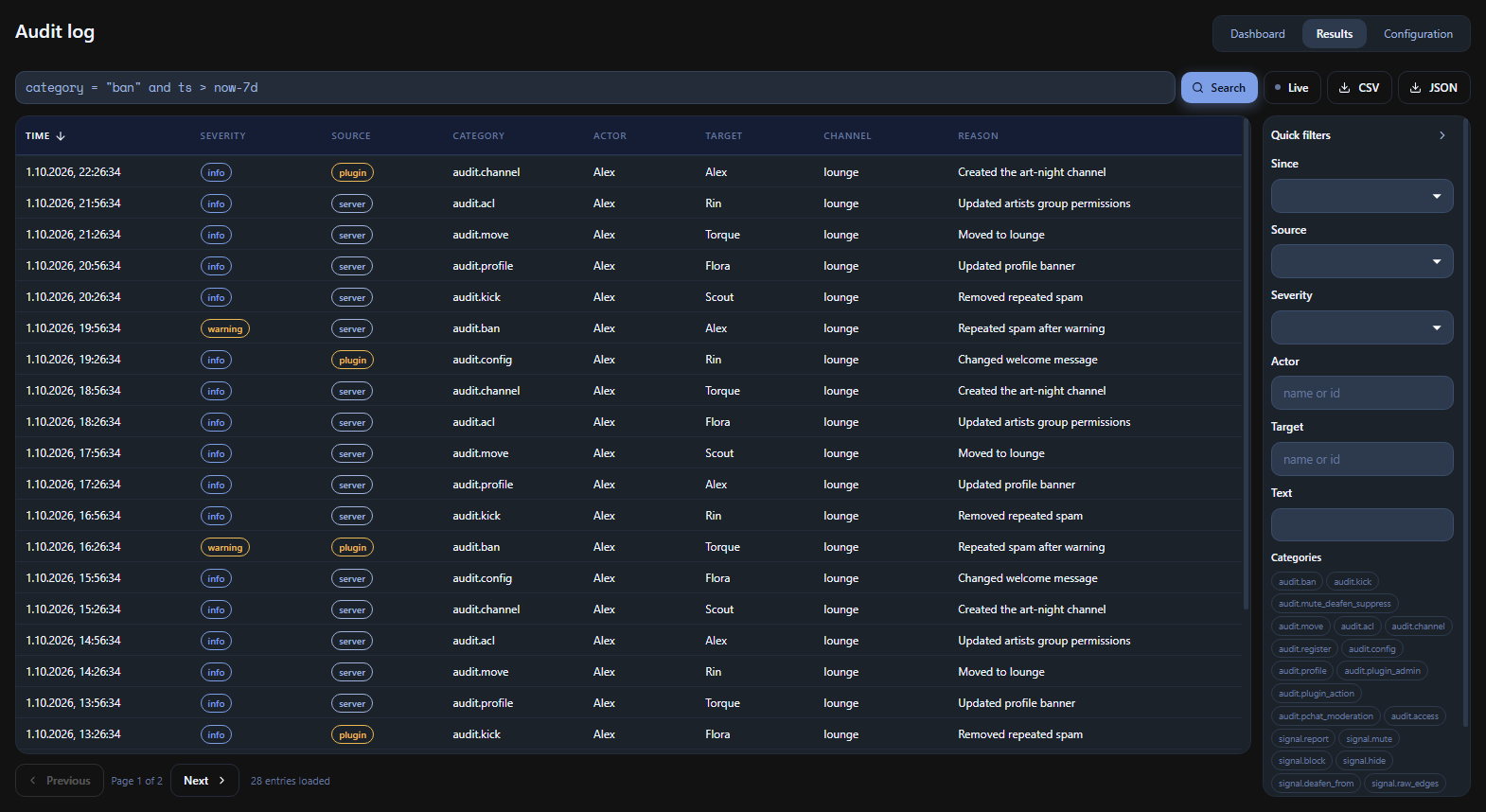
- Select a row to inspect the structured detail and any related entry. For profile changes, a kept copy is available only if the server retained it.
Simple query examples:
category = "audit.ban" and ts > now-7dsource = "server" and actor = 1category in ("audit.kick", "audit.ban") and target = 2Actor and target numbers are registered user IDs. A name can be resolved when the client knows that user; use an ID if a historical name is ambiguous or unavailable. A client source is a reported client claim, while server records an authoritative server action and plugin records a plugin-originated action. Inspect the source before treating a report as proof of a moderator action.
Column sorting affects the loaded rows. Use Next or endless scrolling to load more history. An empty page can mean the selected filters match nothing; clear them and widen the time range before concluding that no event was recorded.
Live updates and export
Section titled “Live updates and export”Live subscribes to new matching entries. CSV and JSON export the entries currently loaded, not the entire server database. Load the required time range before exporting. Include the query, timezone, and export time when sharing an incident record.
Configuration and integrity
Section titled “Configuration and integrity”In Configuration, the server provides the available audit settings. Category switches control new recording; switching one off does not delete existing entries. Retention determines how long history and kept profile copies remain available.
Verify chain checks the retained hash chain. A failure needs investigation: retention can leave a gap, and a broken chain is not by itself proof of malicious editing. Preserve the error and affected range, then compare retention settings and server logs. A successful check establishes chain consistency; it does not establish that every real-world action was recorded.
Advanced SQL queries beginning with SELECT or WITH are available only when the server advertises that capability. If the page reports it unavailable, use the ordinary filters instead.
Missing entries or access errors
Section titled “Missing entries or access errors”- Access denied: check root-channel Write permission and reconnect after permissions change.
- No audit capability: ask the owner to enable the Starling audit service.
- Older entries missing: check retention and whether the event category was enabled at the time.
- Kept copy unavailable: profile-history limits or retention may have removed the stored image or comment.
The client audit log and the operator API’s own audit file are separate records. For infrastructure actions, the owner may need both. For client or service failures, see Collect useful logs.