
Voice Activation
Mic transmits when speech is detected. Threshold driven, default. The noise removal runs on the input.
Audio is the number one thing people fiddle with in voice chat. This page walks every control under Settings, Voice, what it does, when to change it, and the trade-off.
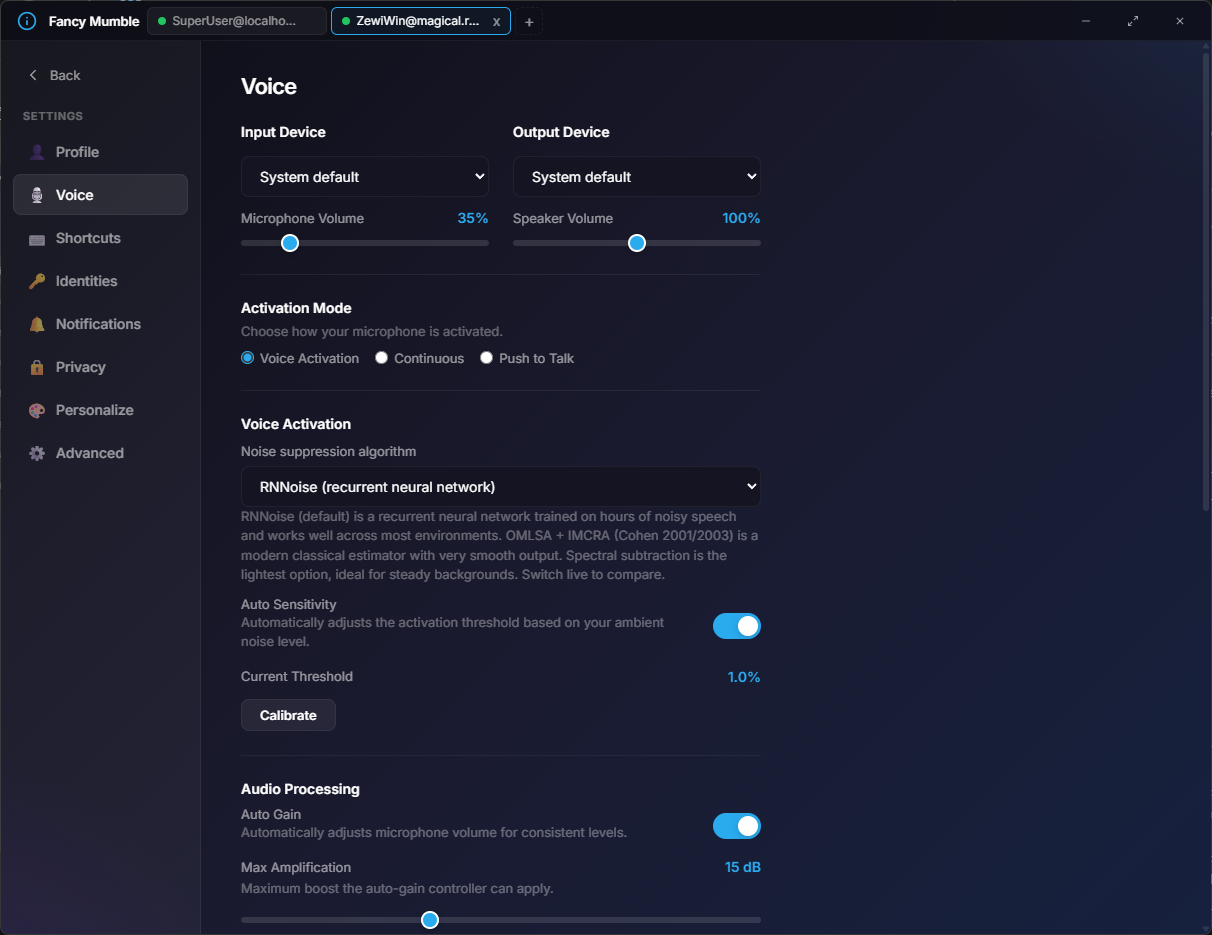
Two side-by-side dropdowns at the top of the panel:
Each has a volume slider from 0% to 200%. Past 100% the app amplifies digitally, so it can clip if pushed too high.
Three radio buttons decide when you transmit:
Voice Activation
Mic transmits when speech is detected. Threshold driven, default. The noise removal runs on the input.
Continuous
Always transmit. No noise removal, no gate. Use only in studio rooms or for recording.
Push to Talk
Transmit only while a key is held. Pick the key with the PTT key recorder below.
When push to talk is selected a shortcut recorder appears. Click
it, press the key combination you want, then release. Most modifier
combos work (Ctrl+Alt+Z, mouse side buttons, single keys, and more).
The key works globally, even when the app is not focused.
Available only in Voice Activation mode. Push-to-talk and Continuous bypass the noise remover. Pick from a dropdown:
| Algorithm | Speed | Quality | Best for |
|---|---|---|---|
| DeepFilterNet | Heavy | Best | Modern computers, keyboard or family noise |
| RNNoise | Light | Very good | Most setups, default |
| OMLSA-IMCRA | Medium | Good | Smooth output, AC hum |
| Spectral subtraction | Very light | Basic | Steady backgrounds |
| None | n/a | n/a | Studio mic in a quiet room |
You can switch live. Test by speaking while a steady noise source is running (fan, AC) and compare.
In Expert mode an Advanced controls strip appears for each algorithm. Common knobs:
The defaults are tuned per algorithm. Do not change them unless you can hear the difference and have time to A/B test.
A toggle that continuously re-fits the voice-activation threshold to your room. Recommended for most users.
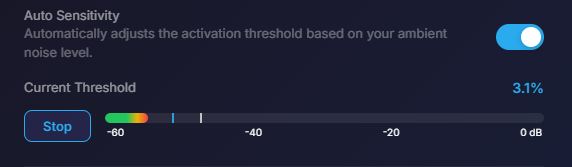
Hit Calibrate under the threshold slider. Three visual elements appear:
Speak naturally, the fill should comfortably cross the line. Stay silent, the fill should drop below. Adjust the threshold (or turn on auto sensitivity) until both are true.
| Control | Range | Default | Description |
|---|---|---|---|
| Auto Gain toggle | n/a | On | Pushes quiet speech up to a target loudness. |
| Max Amplification | 1 to 40 dB | 20 dB | Ceiling on how much the auto-gain may add. |
A higher max can rescue distant speakers, but also makes background noise louder. Pair with a stronger noise removal algorithm.
| Control | Range | Default | What |
|---|---|---|---|
| Quality (bitrate) | 8 to 320 kbps | 56 kbps | Higher is better quality and more bandwidth. |
| Audio per packet | 10, 20, 40, 60 ms | 20 ms | Smaller is lower latency and more packets per second. |
Voice flows over UDP for minimum latency. This is what you want.
Sends all audio through the existing control connection. Adds a little latency, but passes through any firewall that allows the initial connect. Toggle this under Voice, Network.
Visible only when Expert mode is on.
The gate has two thresholds, open and close. The close threshold is the open threshold times this ratio (default 0.8). Lower ratio is more aggressive cut-off, and possibly clips the ends of sentences.
Number of frames to keep the gate open after audio drops below the close threshold. Each frame is the audio-per-packet duration. Increase if your t/s/p/k sounds get cut.
The default audio backend supports modern Linux (PipeWire and Pulse), Windows, and macOS. Toggle this to fall back to the legacy backend for niche setups. Takes effect on the next voice toggle.
Live packet counters per connection:
To Client (server sent): good late lost (n%) resyncFrom Client (we received): good late lost (n%) resyncSustained more than 2% loss is bad. Try Force TCP or a lower bitrate.
Gaming on a noisy keyboard
Activation: Voice. Noise removal: DeepFilterNet. Bitrate: 64 kbps. Frame: 20 ms.
Podcasting
Activation: Continuous. Noise removal: None. Bitrate: 128 kbps. Frame: 10 ms. Use a hardware pop filter.
Cell-data mobile
Activation: Voice. Noise removal: RNNoise. Bitrate: 24 kbps. Frame: 60 ms. Force TCP on.
Streaming + Discord overlay
Activation: Push to Talk. Noise removal: RNNoise. Bitrate: 56 kbps. Pick a side-button mouse for the PTT key.
Continue to Audio problems.