
Push notifications
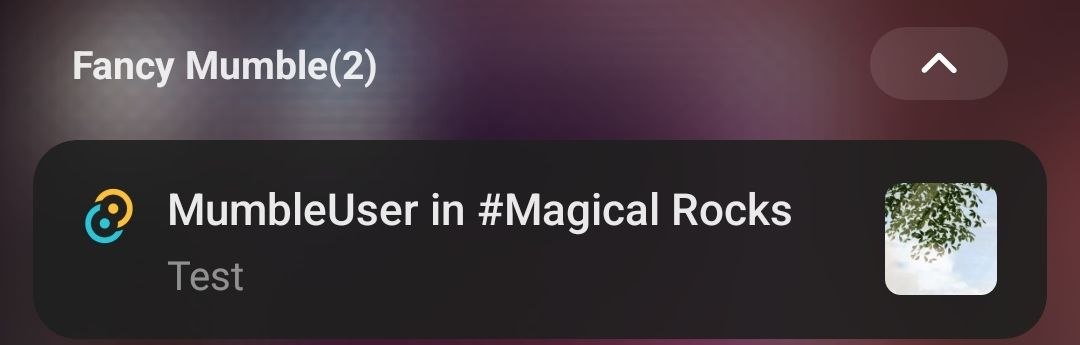
Fancy Mumble delivers notifications through two separate paths:
- Live delivery (desktop and Android app while connected) - The
server routes
TextMessages from channels where the connecting client has theSubscribePushpermission (0x2000). The desktop app fires a native OS notification for messages that arrive while the window is not focused or the channel is not the active one. - Offline push (Android only) - When the Android app is closed or backgrounded, Firebase Cloud Messaging (FCM) wakes it with a notification. There is no iOS client; Fancy Mumble is Android-only on mobile.
The rest of this page covers the Subscribe Push ACL first, then the Firebase setup required for Android offline push.
Subscribe Push ACL
Section titled “Subscribe Push ACL”The SubscribePush permission (0x2000) is a per-channel ACL flag that
gates live notification delivery for every connected client - desktop and
mobile alike.
How it works: When a client connects, the server computes the set of
channels where that client has SubscribePush and routes TextMessages
from those channels over the existing connection. The desktop app turns
each routed message into a native OS notification when the window is
unfocused or the message arrives in a background channel. Channels
without the permission are not routed at all - no notification fires,
regardless of FCM setup.
Granting the permission: Open the channel’s ACL editor (right-click the channel → Edit Permissions), find or create the relevant role, and enable Subscribe Push. See Roles & permissions for the full ACL workflow.
Per-channel muting: Users can suppress notifications for individual channels without revoking the permission by opening Settings → Notifications and toggling off specific channels. The muted list is synced to the server so those channels are excluded from live delivery even when the permission is granted.
The rest of this page covers Firebase Cloud Messaging (FCM), which is only needed for the Android offline-push path.
What you need
Section titled “What you need”- A free Firebase project at console.firebase.google.com.
- A service-account key (JSON file) from that project.
- Five minutes.
Step 1, create a Firebase project
Section titled “Step 1, create a Firebase project”- Open console.firebase.google.com.
- Click Add project, follow the wizard. Name it whatever you like.
- After creation, open Project settings (gear icon).
- Switch to the Service accounts tab.
- Click Generate new private key, then Generate key. A JSON file downloads.
- Note the Project ID at the top of the same page.
Step 2, give the file to the server
Section titled “Step 2, give the file to the server”Pick the method that fits your deployment.
docker secret create MUMBLE_FCM_CREDENTIALS \ ./your-firebase-key.jsonThen reference it in compose:
services:  mumble-server:    secrets:      - MUMBLE_FCM_CREDENTIALS    environment:      MUMBLE_CONFIG_PUSHENABLED: true      MUMBLE_CONFIG_PUSHPROJECTID: your-firebase-project-id
secrets:  MUMBLE_FCM_CREDENTIALS:    external: true
The container reads /run/secrets/MUMBLE_FCM_CREDENTIALS at
startup and the server picks it up automatically.
Good for Kubernetes, CI deployments, or anywhere secret files are awkward.
# Linux or macOSbase64 -w 0 your-firebase-key.jsonOr in PowerShell:
[Convert]::ToBase64String([IO.File]::ReadAllBytes("your-firebase-key.json"))Pass the result as:
environment: MUMBLE_FCM_CREDENTIALS_BASE64: "<long base64 string>" MUMBLE_CONFIG_PUSHENABLED: true MUMBLE_CONFIG_PUSHPROJECTID: your-firebase-project-idThe setup wizard can do the encoding for you.
volumes: - ./fcm-credentials.json:/data/fcm-credentials.json:roenvironment: MUMBLE_CONFIG_PUSHENABLED: true MUMBLE_CONFIG_PUSHPROJECTID: your-firebase-project-id MUMBLE_CONFIG_PUSHCREDENTIALSPATH: /data/fcm-credentials.jsonDo not use this in production. The file ends up readable on the host and can leak into image builds.
Step 3, pick what triggers a notification
Section titled “Step 3, pick what triggers a notification”environment: MUMBLE_CONFIG_PUSHNOTIFYTEXTMESSAGE: true MUMBLE_CONFIG_PUSHNOTIFYREACTION: false MUMBLE_CONFIG_PUSHNOTIFYUSERJOIN: false MUMBLE_CONFIG_PUSHTOPICPREFIX: mumble| Key | Default | Description |
|---|---|---|
pushenabled | false | Master toggle. |
pushprojectid | "" | Your Firebase project ID. |
pushcredentialspath | "" | Where to read the JSON key. Set automatically by Docker secret. |
pushtopicprefix | mumble | FCM topic prefix used for grouping. |
pushnotifytextmessage | true | Send push on a new chat message. |
pushnotifyreaction | false | Send push when someone reacts. |
pushnotifyuserjoin | false | Send push when someone joins a channel you watch. |
Step 4, restart the server
Section titled “Step 4, restart the server”docker compose restart mumble-serverOpen the server logs and look for a line like:
push: registered with project your-firebase-project-idIf you see that, you are live.
Step 5, ask your users to opt in
Section titled “Step 5, ask your users to opt in”Android (offline FCM push)
- Install the Fancy Mumble app on Android.
- Connect to your server at least once with the app open. The app registers an FCM device token at this point.
- Open Settings → Notifications → Mobile push and toggle which events to receive.
Desktop (live notifications)
No Firebase setup is needed for desktop notifications. The desktop app
requests OS notification permission on first launch and fires native
notifications automatically for channels where SubscribePush is
granted. Users can manage per-channel muting under Settings →
Notifications.
FCM is free for the volumes a typical Mumble server generates. Google’s “spark plan” allows unlimited messages.
Privacy
Section titled “Privacy”The push payload contains:
- The channel name the event happened in.
- The sender’s username.
- A short summary of the event (“said: hello”).
- The server’s project ID.
It does not contain:
- The plaintext message body of an encrypted persistent-chat message. Only a generic “new message” hint is sent.
- Any token of identifying data about other users.
If you want to disable the previews entirely, set
MUMBLE_CONFIG_PUSHCONTENTPREVIEW=false (default true).
Disabling push
Section titled “Disabling push”To turn it off, set pushenabled=false and restart. The library is
still in memory but does nothing.
Pitfalls
Section titled “Pitfalls”- No notifications arrive: confirm
pushprojectidmatches the one in the Firebase console. - Notifications arrive in delays of minutes: the user’s phone has battery saver enabled. Ask them to set the app to Unrestricted.
- Logs say “credentials missing”: check that the secret is mounted
at
/run/secrets/MUMBLE_FCM_CREDENTIALS, or thatMUMBLE_FCM_CREDENTIALS_BASE64is non-empty.
Apple Push Notification Service is not yet supported. iOS users will only see notifications when the app is in the foreground.
Next step
Section titled “Next step”Continue with Screen sharing relay.